Stop Cloning the Same Repo Again and Again. Git Worktrees Exist.
Stop cloning the same repo for every context switch. Git worktrees give you several branches at once — no WIP commits, no broken dependencies, no clutter.
On this page
- The Pain That Made Me Discover Worktrees
- So, What Are Git Worktrees?
- Why Not Just Clone Again?
- Basic Git Worktree Usage
- A Simple Example
- Listing Your Worktrees
- Removing a Worktree
- Where Worktrees Really Help
- Working on Multiple Features Together
- Running Multiple UI Variants Side by Side
- Using Coding Agents with Worktrees
- Common Commands You Need
- One Small Thing to Remember
- Final Thought
I have seen many developers do this.
They are working on one feature, suddenly another bug comes in, and boom — they clone the same repository again in a different folder.
project/project-bugfix/project-new-ui/project-final-final/project-final-final-really/And honestly, I get it.
For the longest time, I did not know there was a better way.
I discovered Git worktrees only around six months back. Before that, my workflow was exactly what most developers do when they need to urgently switch context.
Commit the current work as WIP.
Switch back to main.
Create a new bugfix branch.
Fix the bug.
Then come back to the feature branch and continue the work.
It sounds manageable until it is not.
The Pain That Made Me Discover Worktrees
I was working on a moderately big feature. You know the kind of feature where many things are half-done, some things are working, some things are broken, and your local setup is in that delicate state where touching anything feels risky.
Suddenly, a bug came in.
As per my knowledge at that time, I did what probably 90% of developers would do.
git add .git commit -m "WIP"git checkout maingit checkout -b bugfix/something-brokeSimple enough, right?
Except it was not.
The vendor files had changed.
Dependencies were different.
Composer dependencies had to be installed again.
NPM dependencies had to be installed again.
Something was not working properly that day, so everything took forever.
Then after fixing the bug, I switched back to my feature branch.
And guess what?
Again, dependencies.
Again, waiting.
Again, pain.
At that point, as every responsible engineer should do, I asked ChatGPT:
How do I avoid this madness?
And out came the answer:
Git worktrees.
My life has been slightly better since then.
Not perfect. I am still a developer. But better.
So, What Are Git Worktrees?
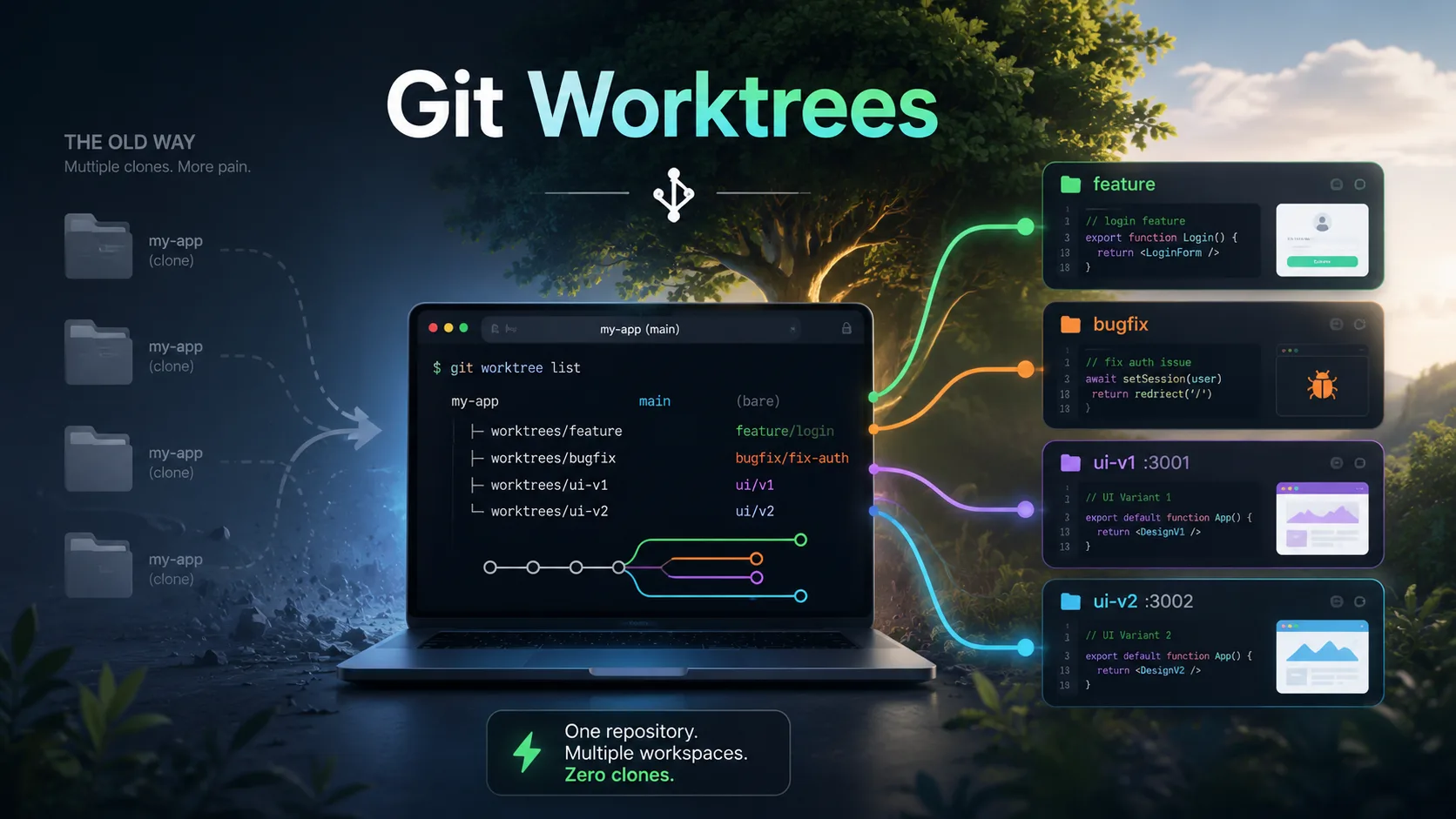
A Git worktree allows you to check out multiple branches of the same repository into different directories, without cloning the repository multiple times.
In normal Git usage, one repository has one working directory.
You switch branches inside that same directory.
With worktrees, one repository can have multiple working directories, each pointing to a different branch.
For example:
my-project/my-project-feature/my-project-bugfix/my-project-new-ui/All of them are connected to the same Git repository, but each directory can have a different branch checked out.
So instead of cloning the same repo again and again, you create additional working directories from the same repo.
Why Not Just Clone Again?
You can clone again.
Nobody will come and arrest you.
But cloning repeatedly creates unnecessary duplication.
- You download the same repo again.
- You configure things again.
- You may need to set up remotes again.
- You may need to reinstall dependencies again.
- You waste disk space.
- You waste time.
And most importantly, you create mental clutter.
With worktrees, you avoid cloning the same repository multiple times just to work on different branches.
You keep one main repository, and Git manages additional working directories for you.
Basic Git Worktree Usage
Let’s say your main project is here:
~/code/my-projectYou are currently working on a feature branch:
feature/new-dashboardNow suddenly a production bug comes in.
Instead of committing WIP, switching branches, and disturbing your current setup, you can create a new worktree.
From inside your repository, run:
git worktree add ../my-project-bugfix -b bugfix/login-issue mainThis creates a new folder:
../my-project-bugfixInside that folder, Git checks out a new branch called:
bugfix/login-issuebased on:
mainNow you can open that folder separately and work on the bug.
Your original feature branch remains untouched in your original directory.
No branch switching drama.
No WIP commit just to escape your current work.
No “where did my changes go?” moment.
A Simple Example
Your folder structure may look like this:
code/ my-project/ # feature branch my-project-bugfix/ # bugfix branchIn the first folder:
cd ~/code/my-projectgit branchYou may be on:
feature/new-dashboardIn the second folder:
cd ~/code/my-project-bugfixgit branchYou may be on:
bugfix/login-issueBoth are part of the same Git repository, but they behave like separate working directories.
Listing Your Worktrees
To see all worktrees connected to your repo:
git worktree listExample output:
/home/ravi/code/my-project abc1234 [feature/new-dashboard]/home/ravi/code/my-project-bugfix def5678 [bugfix/login-issue]This shows which branch is checked out in which directory.
Removing a Worktree
Once your bugfix is done and merged, you can remove the worktree.
First, delete it using Git:
git worktree remove ../my-project-bugfixIf needed, you can also prune stale worktree references:
git worktree pruneThat’s it.
No extra clone to maintain.
No forgotten folders sitting around for months.
No “which copy of the project is this?” confusion.
Where Worktrees Really Help
The obvious use case is bugfixes.
You are working on a feature, and suddenly something urgent comes in. Create a worktree, fix the bug, push it, and come back to your original work.
But once I started using worktrees, I found more places where they are useful.
Working on Multiple Features Together
Sometimes you are not working on just one thing.
You may have one feature under review, another feature in development, and one urgent patch waiting.
Earlier, this either meant branch switching or multiple clones.
Now, you can have:
my-project-feature-a/my-project-feature-b/my-project-hotfix/Each folder has its own branch.
Each branch has its own working directory.
You can move between them without disturbing the others.
This is especially useful when one branch is in a messy state and you do not want to touch it until you are ready.
Running Multiple UI Variants Side by Side
One very important thing worktrees helped me with was comparing two UI versions side by side.
I had two different variants of the UI and wanted to see which one looked better.
Instead of switching branches again and again, I created two worktrees.
One ran on port 3001.
The other ran on port 3002.
Something like this:
cd my-project-ui-v1npm run dev -- --port 3001And in another terminal:
cd my-project-ui-v2npm run dev -- --port 3002Now I could open both in the browser:
http://localhost:3001http://localhost:3002And compare them properly.
No screenshots.
No branch switching.
No “wait, what changed?” confusion.
Just two versions running side by side.
For UI work, this alone makes worktrees worth learning.
Using Coding Agents with Worktrees
This is where things get even more interesting.
If you use coding agents like Claude Code, Codex, OpenCode, Cursor agents, or anything similar, worktrees become even more useful.
You can open one coding agent in one directory and another agent in another directory.
For example:
my-project-agent-feature/my-project-agent-refactor/my-project-agent-bugfix/Each agent gets its own branch and its own workspace.
This reduces the chance of agents stepping on each other’s changes.
And yes, this is also how you properly utilise your 20x usage limits.
One agent can work on a UI experiment.
Another can work on a backend refactor.
Another can investigate a bug.
All in separate worktrees.
You still need to review everything like a responsible adult, unfortunately. But the workflow becomes much cleaner.
Common Commands You Need
Create a new worktree with a new branch:
git worktree add ../project-bugfix -b bugfix/login-issue mainCreate a worktree for an existing branch:
git worktree add ../project-feature feature/existing-featureList all worktrees:
git worktree listRemove a worktree:
git worktree remove ../project-bugfixClean stale references:
git worktree pruneThat is enough to get started.
You do not need to become a Git wizard.
You just need to know that this exists.
One Small Thing to Remember
A branch can usually be checked out in only one worktree at a time.
So if you already have feature/new-dashboard checked out in one directory, Git will not let you check out the same branch in another worktree.
This is actually a good thing.
It protects you from accidentally working on the same branch from two places.
If you want a separate experiment, create a new branch.
git worktree add ../project-experiment -b experiment/new-layout mainFinal Thought
Git worktrees are one of those tools that feel obvious after you discover them.
But somehow, many developers go years without using them.
I did.
Honestly, I did not know about worktrees until around six months back.
I only learned about them because I hit a real problem. My feature branch was messy, an urgent bug came in, dependencies broke, Composer and NPM both wanted attention, and my day was slowly turning into a punishment.
Then I discovered worktrees.
Since then, I use them regularly when working on multiple features, urgent fixes, UI variants, and coding-agent experiments.
So if you are a late boomer like me, someone who learns things only when forced by pain, save this post somewhere.
Someday, when you are about to clone the same repo for the fifth time, this might help you.
LogCTL Dispatch
New essays, experiments and workflows. No daily noise.
Usually 2–4 emails a month.
Comments
Loading comments…